


Showing posts with label Hardware. Show all posts
Showing posts with label Hardware. Show all posts
Oct 7, 2010
What is a Hard Disk Drive Crash?

Sep 25, 2010
Keep Your Keyboard Clean

Over time, all keyboards accumulate dust, crumbs, and other everyday dirt. And all it takes for, say, your 'S' key to stop working is for something to get lodged under it.
Sep 19, 2010
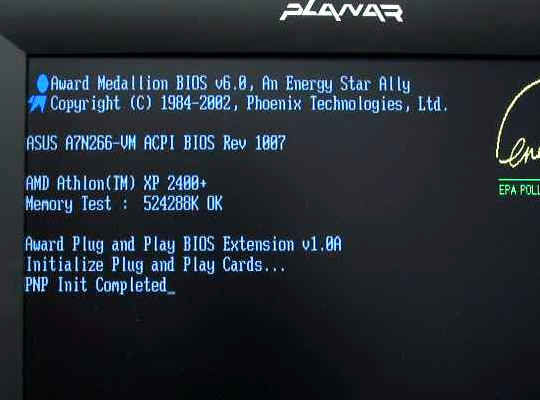
Troubleshoot POST Problems
Sep 7, 2010
Re-Use Your Old Laptop's Hard Drive

An enclosure is essentially an external case for that internal drive, one that lends it a USB interface. When all is said and done, you'll have a compact USB hard drive you can use for backups, extra storage, transporting files, and so on.
More immediately, an enclosure lets you easily restore your data onto the new drive--a simple drag-and-drop operation. With that done, you'll have to decide if you want to wipe the drive or keep it intact.
Sep 4, 2010
Upgrade Your Laptop's Memory

Then I remembered that the machine is about three years old and wasn't a powerhouse to begin with. So I checked the RAM. Bingo: it has only 1GB. Windows Vista needs at least 2GB to run smoothly.
Upgrading a laptop's RAM may sound like a big deal, but it's actually the single easiest upgrade there is. The only challenge lies in determining how many RAM modules your system currently has and what kind they are.
Aug 28, 2010
Never Open Your Power Supply

Power supply units (PSUs) aren't really meant to be opened and messed with on the inside. Most likely you accidentally broke something or put it together wrong.
Since you've already done the deed, you might as well try it again to make sure nothing is broken or out-of-place. Pay particular attention to dull-colored, cold solder connections, to see if they're damaged.
Jul 25, 2010
How To Check If Lightning Damaged Your PC

First, unplug the computer, open it up, and have a look. Have a sniff, too. An unusual smell may lead you to the damaged piece.
It's probably the power supply. That's where the electrical spike would come in, and it's thus the most likely component to be damaged. Luckily, power supplies are relatively cheap and easy to replace--some cost less than $40. Of course, if you have to replace your power supply, you should get one that will cover your needs.
Jul 11, 2010
Is It Safe To Use Your Laptop In The Car?

The inertia of normal driving shouldn't cause any harm. People use their laptops on trains and buses all of the time--some of the buses in my area even offer WiFi.
I used to own an MP3 player with a hard drive, and I played it frequently--plugged into my car's sound system--while driving. That didn't seem to bother it.
Jun 4, 2010
How To Choose Between VGA, DVI, and HDMI
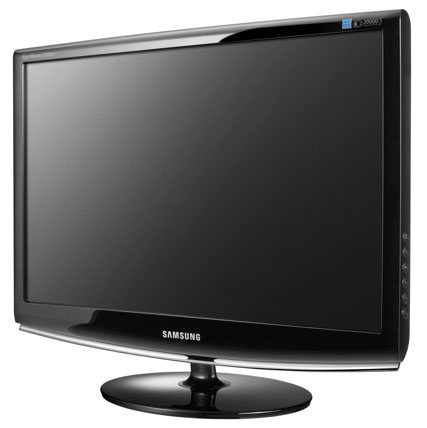
I'm going to answer in reverse.
May 4, 2010
How to Take Proper Care of Your Laptop

You're more likely to damage a laptop than a desktop PC (no one has ever driven off, forgetting the desktop on top of their car), and once damaged, laptops are harder and more expensive to repair. That's why we have to provide more care when using this expensive gadget. Here's a few tips how:
Keep the battery cool. Today's lithium batteries wear out no matter what you do, but you can postpone the inevitable. Avoid heat and use the battery as little as possible. If you're going to be running on AC power for awhile, shut down or hibernate the computer, remove the battery, and work without it.
Feb 9, 2010
How to Troubleshoot a PC that Stops During Boot

A PC that starts, then fails to boot, probably suffers from an overheated CPU or a bad or underpowered power supply unit (PSU). But I'm going to suggest you check the power source first. Not because it's more likely the culprit (it isn't), but because it's easier to diagnose and fix. If you go to the trouble of replacing the PSU, and then discover that you only needed to plug it in somewhere else, you'll hate yourself in the morning.
So let's get the easy stuff out of the way. Try another outlet on the surge protector. Try another outlet on the wall. Try another surge protector. If the problem is with a desktop PC, try another power cord. If it's with a laptop, remove the battery and try with only the AC adapter.
None of these helped? Okay, I didn't really think they would, but they were worth trying. Now let's get on to the more likely issues:
A serious ventilation problem could cause your CPU to overheat and shutdown before the boot is complete. Make sure the PC's fans are all turning properly. This is easy to do on a desktop: Just open the PC and watch the insides as it boots. It's more difficult on a laptop, but if you listen attentively you should hear the fan.
You should also check the vents and air passageways to make sure they're not blocked or clogged with dust. If they are, use a can of compressed air to clean them out.
If the failure happens while Windows is booting, the operating system may be the problem. Try booting into Safe Mode: Boot the PC and press F8 just before the Windows log-on appears (it may take a few attempts to get the timing right). At the Boot Menu (assuming you get that far), select Safe Mode. If you can successfully boot into Safe Mode, it's a software problem.
If you can't even get into Safe Mode, try booting from something other than the hard drive. You likely have a bootable CD or DVD lying around (a Windows installation disc, for instance).
If all else fails, try replacing the power supply unit. Desktop PSUs are inexpensive. They're reasonably easy to replace, although if you're not comfortable working inside a PC, go to a professional.
For a laptop, try replacing the AC adapter. You'll need one specific for your model.
Feb 3, 2010
PC Troubleshooting: The Correct Attitude

It really happens. You're rushing to a deadline or having a blast on your favorite game, then the system crashes. It's amazing how different people react when their computers bog down or doesn't respond. Some are indifferent, but most are bordering to violence. ^^
Here's a few tips to save yourself and your sanity...
1: Accept it. This stuff happens to everybody. Sometimes there's no rhyme or reason to it, and most of the time it's through no fault of your own. Windows is an unpredictable, unreliable beast (yes, even Windows 7). A single problem driver or incompatible program can wreak havoc on an otherwise healthy system. When you accept that problems can and will happen, they'll be less of a surprise--and less likely to ruin your day.
2: Relax. System won't boot? Printer won't print? iPhone won't sync? Take a deep breath. In fact, take several. Then walk away from the offending machine, device, or whatever, and do something else for 5-10 minutes. I know full well how annoying and frustrating these glitches can be. That's why it's crucial to get some distance, so you can come back calm and clear-headed. Which ties directly to rule #3:
3: Don't overreact. I can't tell you how many times I've made things worse by failing to heed rule #2. Instead, I start flinging mouse-clicks at the troubleshooting dartboard. Uninstall a driver here, update a BIOS there, run the free virus-removal utility that promises to fix everything--it all snowballs. That's how one problem evolves into several, until eventually you think: "Ah, screw it, I'll just buy a new PC." (Tell me you haven't had that exact reaction at some point.) By all means, troubleshoot the problem, but do so slowly and methodically.
Oct 26, 2008
How To Safeguard Your Wireless (Wi-Fi) Network
Out of the box, most Wi-Fi routers are totally insecure. Fixing that takes only a few minutes, but you can easily get lost in the confusing menus of your router's management tool. Here's what to do.
1. If possible, plug in via ethernet to set up your router at the start--it'll save considerable time down the line. Don't bother installing the special software that comes with your router. Most routers can be controlled via a Web browser, which lets you manage your router from any networked PC.
2. To manage the router, type its IP address into your Web browser's address bar. If you don't know the IP address, go to Start, Run and type ipconfig /all in the field. The address will be shown as 'Default Gateway'. You'll also need the user name and password available in the manual or via an online search of the model number.
3. Once you can manage your router, change the administrator password you just looked up. This is typically under System Settings or a similar option.
4. Next, turn on encryption. WPA (or WPA-PSK) is about as secure as Wi-Fi gets today. Set a WPA key, and configure your clients to use the new key. (If one of the devices on your network does not support the WPA version you want to use, though, you'll have to go with a less secure method.) Look for 'Encryption' or 'Security' in the wireless management portion of the page (where you'll also find the following steps' settings).
5. It's a good idea to change the SSID from the default, which is usually 'linksys', 'belkin', or the like. Choose an SSID that doesn't invite inquiry from passersby (like 'broken' instead of 'janes-wifi' or '123mainstreet'). For extreme security, turn off SSID broadcasting.
6. Optional: Enable MAC address control, which limits access to computers you specify by their unique MAC address. This can enhance security, but MAC addresses are easily spoofed, and using this feature means you'll have to access your router's admin page to add new PCs to your network. To find a PC's MAC address, use the ipconfig command in step 2; look for the 'Physical Address'. Add that address to the allowed list in the appropriate router settings page.
1. If possible, plug in via ethernet to set up your router at the start--it'll save considerable time down the line. Don't bother installing the special software that comes with your router. Most routers can be controlled via a Web browser, which lets you manage your router from any networked PC.
2. To manage the router, type its IP address into your Web browser's address bar. If you don't know the IP address, go to Start, Run and type ipconfig /all in the field. The address will be shown as 'Default Gateway'. You'll also need the user name and password available in the manual or via an online search of the model number.
3. Once you can manage your router, change the administrator password you just looked up. This is typically under System Settings or a similar option.
4. Next, turn on encryption. WPA (or WPA-PSK) is about as secure as Wi-Fi gets today. Set a WPA key, and configure your clients to use the new key. (If one of the devices on your network does not support the WPA version you want to use, though, you'll have to go with a less secure method.) Look for 'Encryption' or 'Security' in the wireless management portion of the page (where you'll also find the following steps' settings).
5. It's a good idea to change the SSID from the default, which is usually 'linksys', 'belkin', or the like. Choose an SSID that doesn't invite inquiry from passersby (like 'broken' instead of 'janes-wifi' or '123mainstreet'). For extreme security, turn off SSID broadcasting.
6. Optional: Enable MAC address control, which limits access to computers you specify by their unique MAC address. This can enhance security, but MAC addresses are easily spoofed, and using this feature means you'll have to access your router's admin page to add new PCs to your network. To find a PC's MAC address, use the ipconfig command in step 2; look for the 'Physical Address'. Add that address to the allowed list in the appropriate router settings page.
Oct 11, 2008
How To Troubleshoot Standby or Hibernate Problem
What if Windows doesn't awaken from its standby or hibernate modes?
Many standby and hibernate problems can be traced to graphics boards and sound cards. A simple driver update might get hibernation working again.
Some applications can cause sleep/wake-up difficulties as well. As a test, put your PC into standby or hibernation when particular programs are running, and when they aren't. If everything works when you're not running a certain program, look for a free update, replace the app if no such update is available, or close the program before you take a break.
A BIOS update could also resolve the matter. Check your system vendor's Web site to see if one is available.
If something doesn't work immediately after your system wakes up, wait a bit and try again. Your computer could take a while to come back. If all else fails, enter the name of the hardware or software you installed most recently along with the words 'standby' or 'hibernate' in a search engine to find Web pages and Usenet discussions on potential problems.
Many standby and hibernate problems can be traced to graphics boards and sound cards. A simple driver update might get hibernation working again.
Some applications can cause sleep/wake-up difficulties as well. As a test, put your PC into standby or hibernation when particular programs are running, and when they aren't. If everything works when you're not running a certain program, look for a free update, replace the app if no such update is available, or close the program before you take a break.
A BIOS update could also resolve the matter. Check your system vendor's Web site to see if one is available.
If something doesn't work immediately after your system wakes up, wait a bit and try again. Your computer could take a while to come back. If all else fails, enter the name of the hardware or software you installed most recently along with the words 'standby' or 'hibernate' in a search engine to find Web pages and Usenet discussions on potential problems.
Sep 29, 2008
How To Safely Remove External Devices
The Hassle: I disconnected an external USB drive, but I can still see it in Windows Explorer. And every few seconds I get a 'Delayed Write Failed' error message. It's a pain in the neck--and confusing.
The Fix: The case of the phantom flash drive, eh? The Safely Remove Hardware tool (the green arrow in the system tray) is meant to complete any reads or writes and then flush disk buffers on the device. Not using it--and just disconnecting the device--is a game of high-tech Russian roulette that can result in corrupted files.
You probably know the safest way to disconnect such hardware: Click the green arrow icon, highlight the device, and click Stop.
If you're constantly swapping flash drives and other USB external add-ons, you might want some extra help. USB Safely Remove--a handy, $20 program--gives you more ways to handle multiple USB devices. For instance, the tool allows you to stop peripherals via keyboard shortcuts and lets advanced users employ command-line batch files to stop multiple gadgets.
The Fix: The case of the phantom flash drive, eh? The Safely Remove Hardware tool (the green arrow in the system tray) is meant to complete any reads or writes and then flush disk buffers on the device. Not using it--and just disconnecting the device--is a game of high-tech Russian roulette that can result in corrupted files.
You probably know the safest way to disconnect such hardware: Click the green arrow icon, highlight the device, and click Stop.
If you're constantly swapping flash drives and other USB external add-ons, you might want some extra help. USB Safely Remove--a handy, $20 program--gives you more ways to handle multiple USB devices. For instance, the tool allows you to stop peripherals via keyboard shortcuts and lets advanced users employ command-line batch files to stop multiple gadgets.
Sep 5, 2008
How to Share a Printer Over a Network
You don't need multiple printers just because you have more than one PC. Here's an easy guide to share your printer from one computer to another.

Choose Your Printer
Having several computers in your home or office doesn't mean you have to buy several printers, too. If your PCs are connected via a wireless network (or a wired one, for that matter), you can easily share them by turning on Sharing in Windows. To get started, open the Printers and Faxes control panel in Windows XP (simply called Printers in Vista). Right-click on the printer you want to share, and choose Sharing.

Configure the Sharing Properties
In the printer's Properties menu, the Sharing tab should now appear. Click the radio button next to "Share this printer" and give the printer a share name that you will easily recognize. Click OK when you're done. Afterward, the icon in the Printers and Faxes control panel should display a cupped hand on the printer's icon.

Add the Shared Printer to Other PCs
On each of the computers that you would like to use with the shared printer, you will need to add the shared printer. Make sure each of these machines is connected to your network before opening the Control Panel and selecting the Printers and Faxes (in XP) or Printers (in Vista) control panel. Once it's open, click "Add a printer" to proceed. On the next screen, choose "Add a network, wireless or Bluetooth printer."

Complete the Sharing Setup
Windows will automatically search your network for any shared printers and display its finds in the "Select a printer" window. You should see your newly shared device listed. (If you don't, then there may be a problem with you network settings.) Select it and then click Next. For the vast majority of printers, Windows will automatically download the appropriate driver for you at this point, if it's not already on your system. Your shared printer will now appear in your Printers and Faxes (or Printers) control panel, and should also appear as an option from within the Print menus of all your applications. From here on out, the hardest part of printing over your network should be walking over to the printer to grab your documents.
Aug 29, 2008
Why Does My PC Suddenly Shut Itself Off?
If Windows inexplicitly closes and your PC shuts down, it's almost certainly overheated. The PC, which monitors the temperature of the CPU, is protecting it's delicate circuits from the ravages of heat. (On the other hand, if you PC frequently shuts off without closing Windows first, causing an error message when you next boot, it's likley time to replace the power supply.)
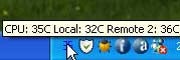
Of course, knowing the CPU's current temperature isn't much use if you don't know the chip's safe parameters. If you don't know your processor, click Start, right-click My Computer (Computer in Vista), and select Properties. With that information, go to CPU World to find your processor's temperature information.
What can you do to relieve overheating problems? If you have a desktop PC:
- Make sure nothing is blocking the PC's air vents.
- Unplug the PC and open it up. Use a can of compressed air to remove dust, especially around the fans and vents.
- While the PC is open, note the position of the internal cables. Are any of them blocking vents or air flow?
- Plug in the PC--while it's still open--and boot it to make sure that all the fans run properly. If one isn't spinning, try to find out and fix what's blocking it.
If you have a laptop:
- Make sure that nothing's blocking the vents in any location where you commonly use the PC. Be especially careful about running it on top of pillows or blankets, which can easily block the vents.
- With the PC off, spray compressed air into the vents to remove dust. Use only a moisture-free compressed air canister.
- If these steps don't help, take it to a professional. Unless you really know what you're doing, you don't want to mess with your laptop's innards.


